Creating consistent backgrounds using Autodraft
Kumar Anurag•July 30, 2025•7 min read
There’s something to be said about being able to create incredibly high quality and insanely aesthetic backgrounds and scenes within minutes.
Image preview
Didn’t understand? Here’s what we mean:
Using Autodraft, you can now do the most tedious parts of 2D animation - asset and character generations, colour correcting, consistency across the board - with a snap of your fingers. We mean, a few clicks on your keyboard. Today we’ll quickly learn about how to generate consistent backgrounds using Autodraft - with minimal (and we mean extremely minimal) effort.
Today we are going to focus on generating consistent backgrounds in 3 easy steps - using both the prompt and the image to image feature.
First off, we will start with the prompt to image feature - if you are flexible in your approach, and are happy to play around with prompts a little to get the perfect result you want, the prompt to image option is for you.
Important tip: You have to know how to describe the image perfectly, simply enter your prompt into the text box here. The more description you provide in the prompt, the more your result will be specific to your needs.
Step 1: If you have an account on Autodraft, great! If you don’t, create your free account using your Google account or an email address (no credit card required).
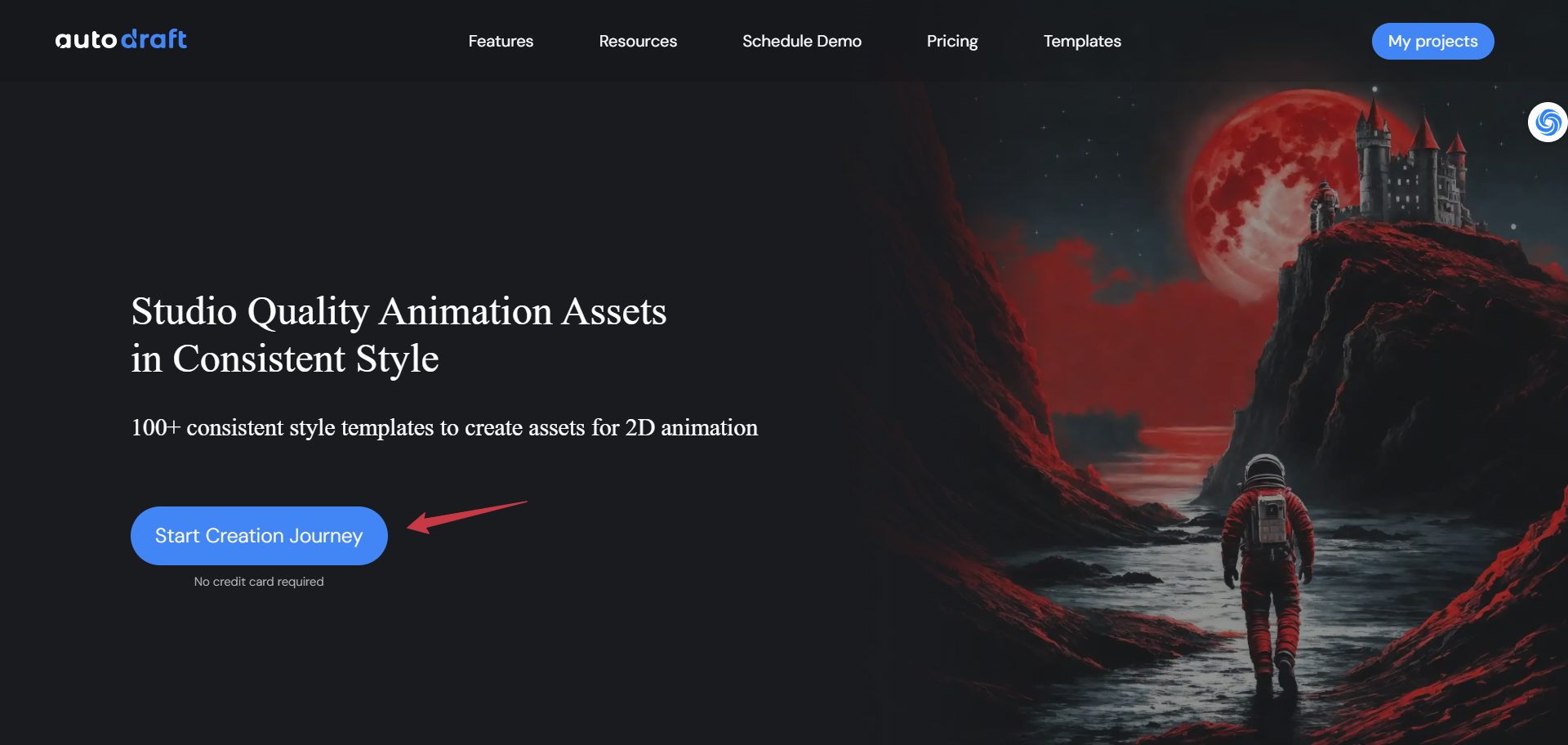
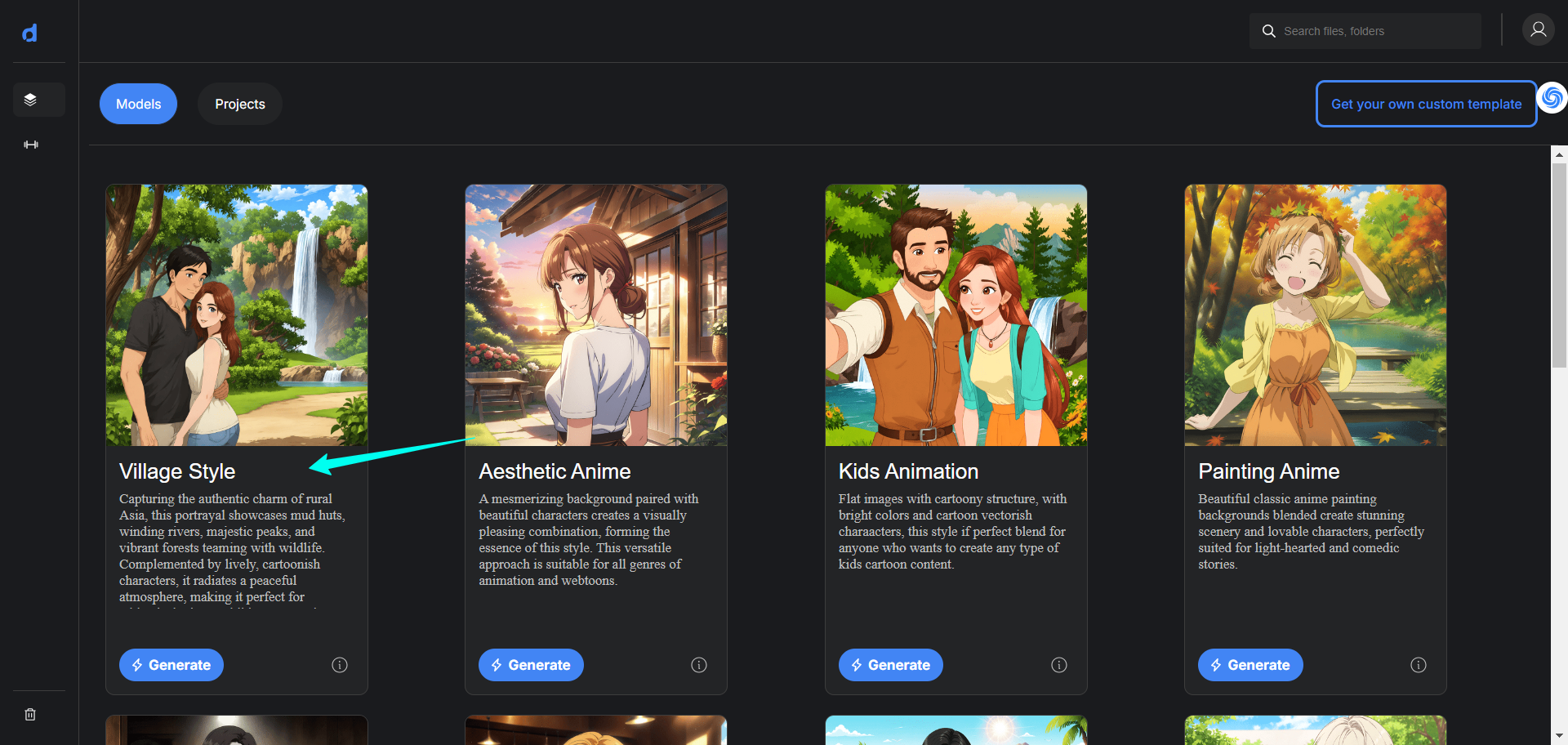
Step 2: Once your account is successfully created, click the button saying ‘start creation journey’. Choose your model style for the project. If you are starting a new project, name it.
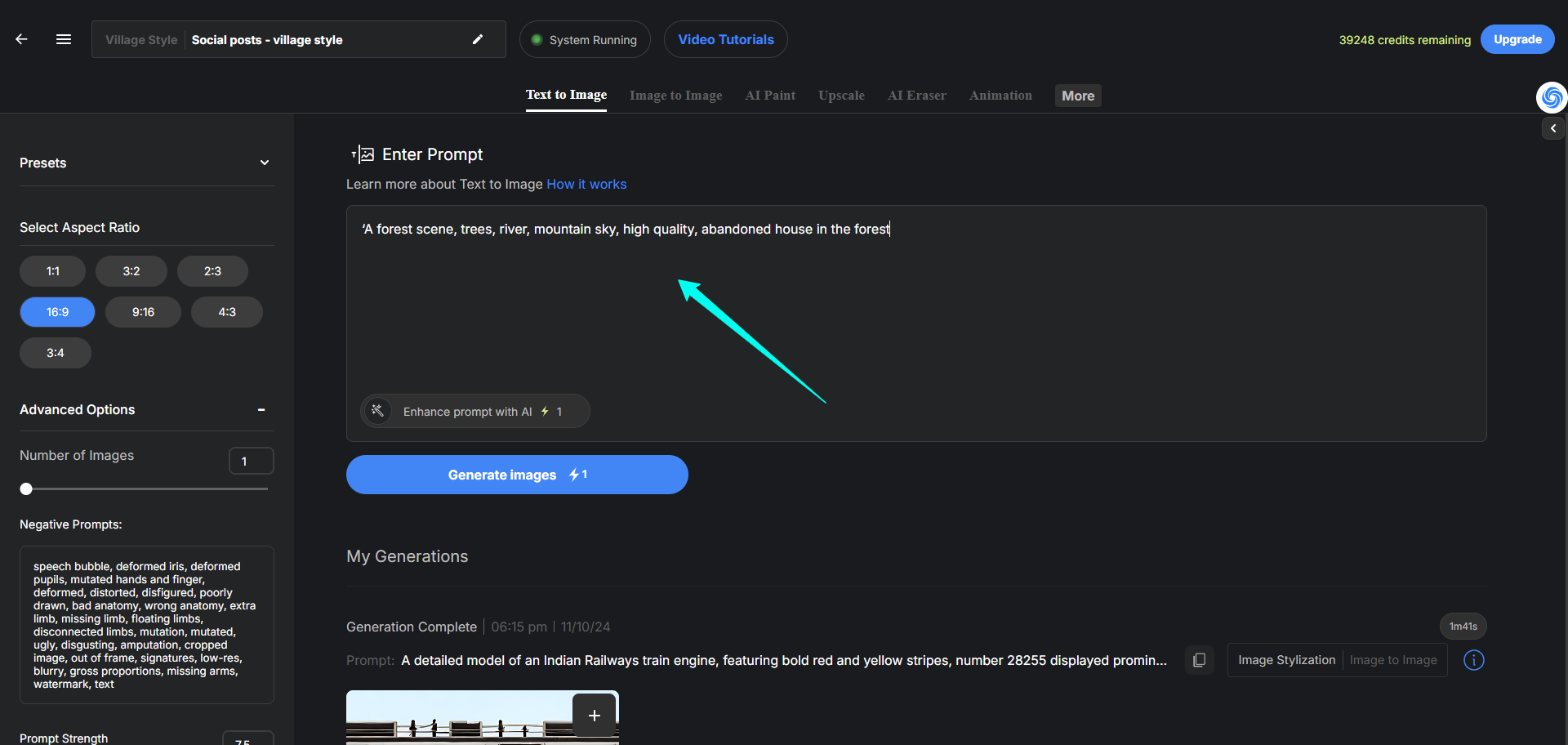
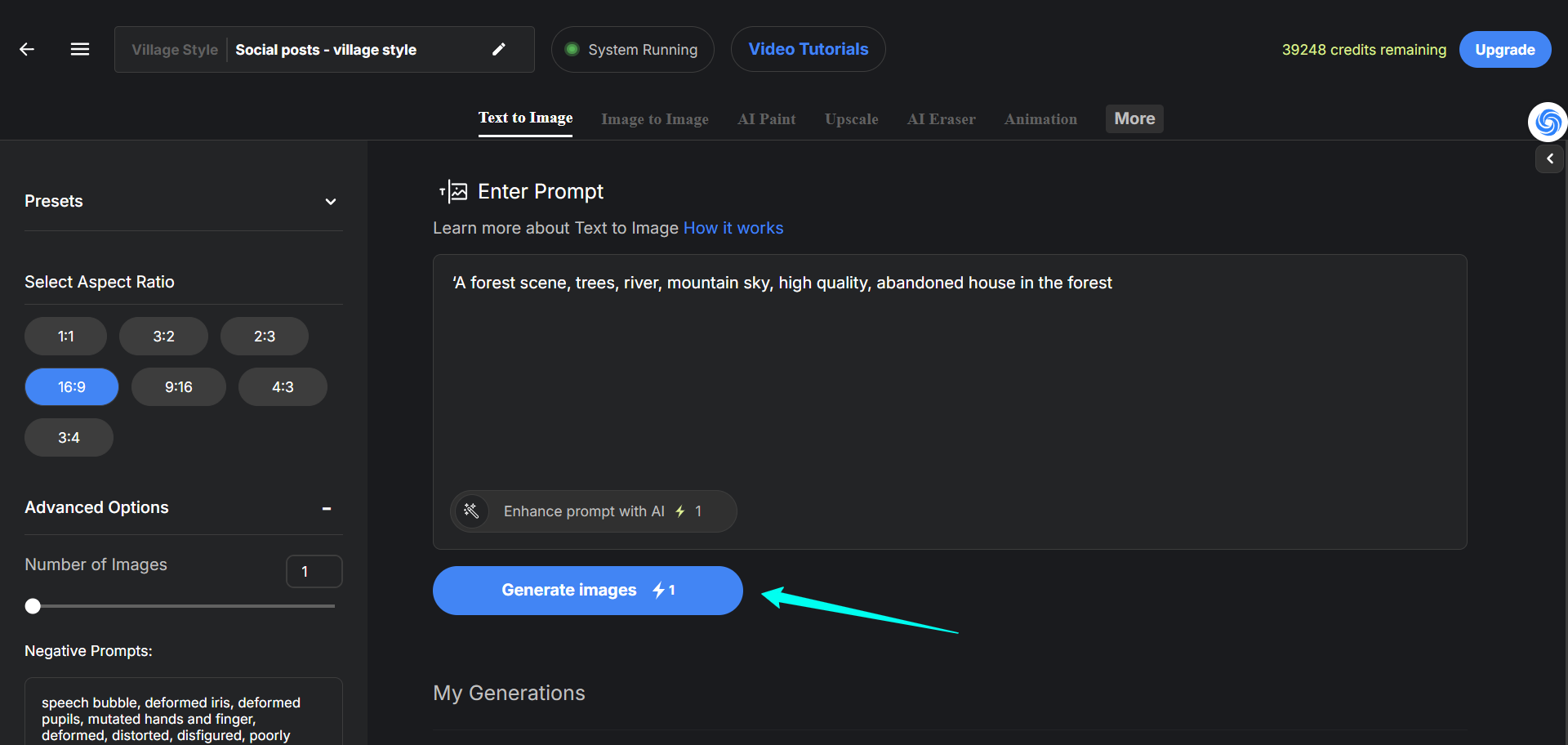
Step 3: Enter your descriptive prompt into the text box (e.g., ‘A forest scene, trees, river, mountain sky, high quality, abandoned house in the forest’) and hit ‘generate images’.
Wait a few seconds to see the final result.
There is a small challenge with the prompt to image feature - because Autodraft works with a diffusion based machine learning model, the results may vary with every attempt, even if you are using the same prompt each time.
However, there’s a simple alternative to this - using our image to image feature.
Generating bgs using image to image feature:
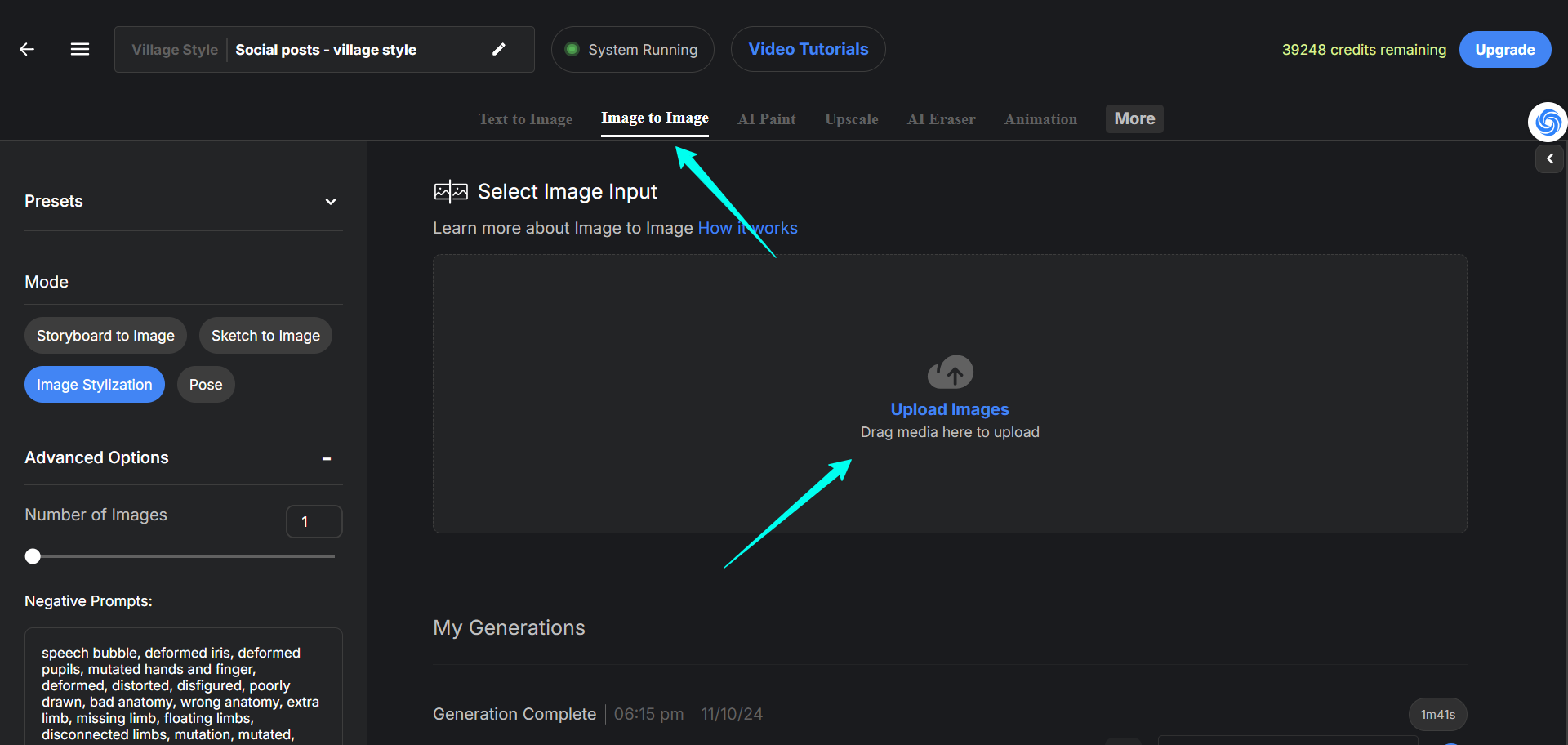
Step 1: Pick a reference image that suits your needs as closely as possible. Upload your reference image. Click on the ‘image to image’ button on top.
Step 2: Click on the little wand to auto-generate the prompt based on the uploaded picture.
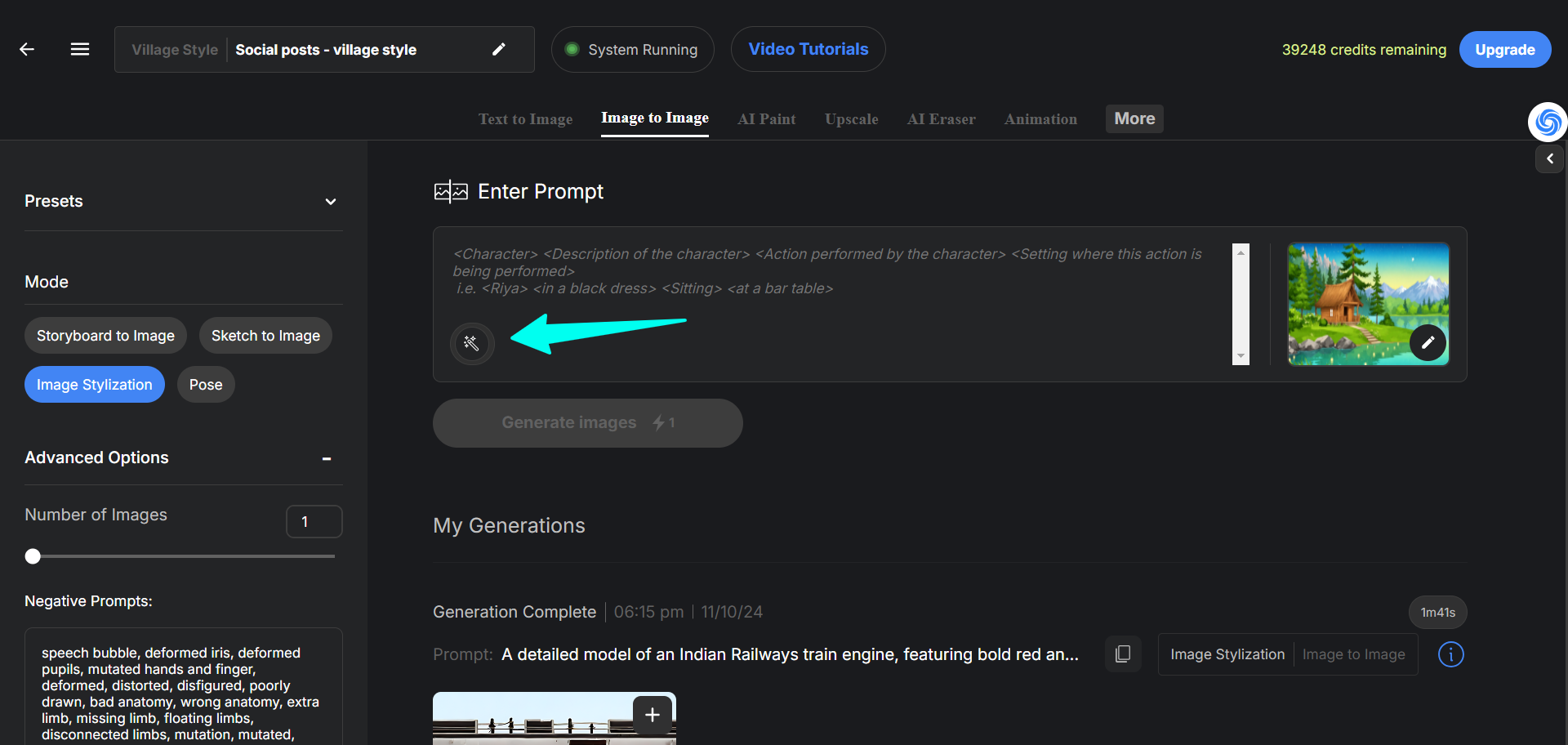
Step 3: Click ‘generate’ and download!
Create an account today and try it out for yourself!